Table of Contents
Affiliate disclosure: ToolTester24 may earn a fee. Act if you buy through the affiliate links in this guide. Our review is based on public docs, not hands-on product testing.
Before you move a current site.
Prepare the transfer around the site’s changing data. A brochure site, an active shop and a member site need other handoff arrangements. Keep the old host open until the target and its firm functions pass the agreed checks. Keep your live DNS and mail settings backed up until the staged copy passes every checkout and form test.
If Kinsta is still a buying decision, check the plan and move scope first. A current client should use the approved MyKinsta move route below. No new account is implied.
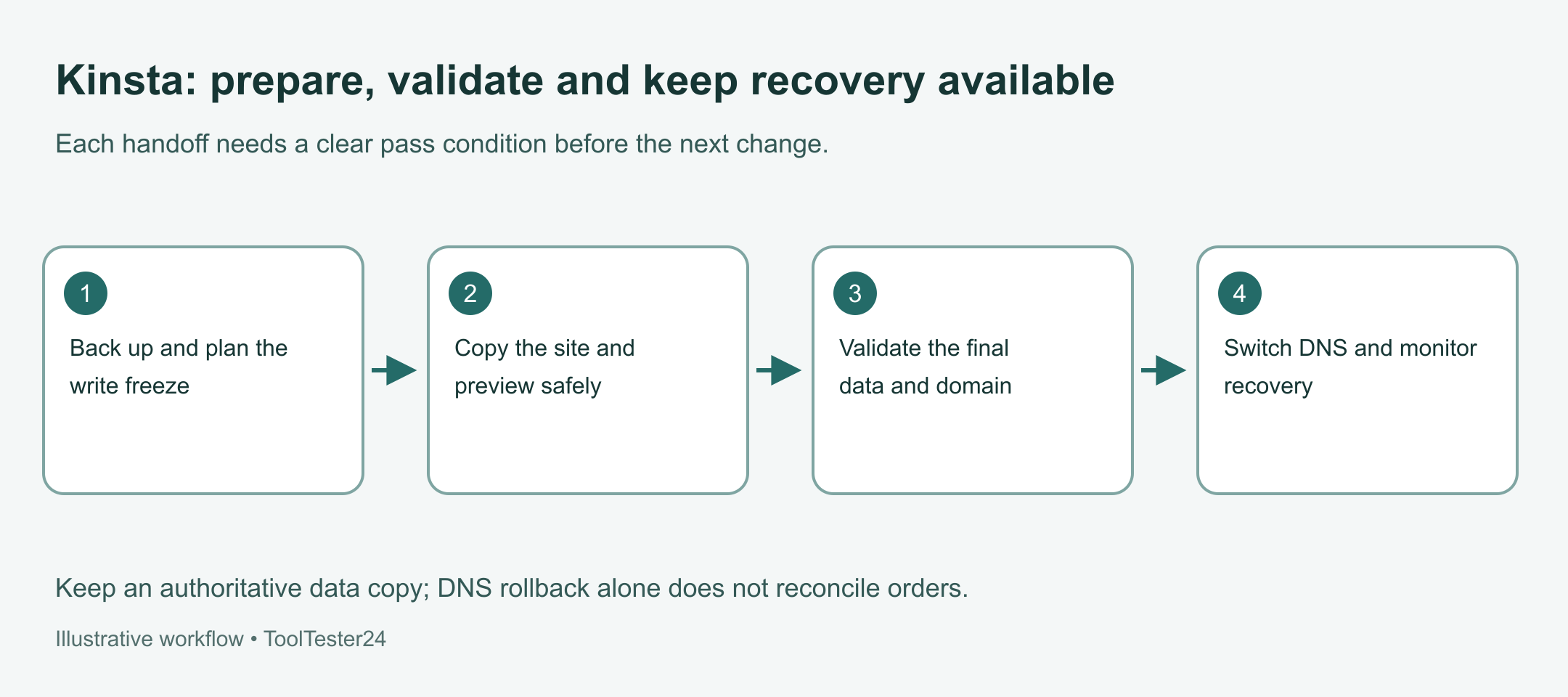
To migrate WordPress to Kinsta, preserve a recoverable copy, arrange how new orders and other changes will be handled, request or perform the transfer, then validate the target before changing site DNS. A copied DB is a snapshot. Traffic received afterward needs a deliberate handoff.
This guide follows Kinsta’s assisted-move route for a current WordPress site. It uses public docs reviewed on 29 Oct 2026, without claiming a move we performed, a completion deadline or a speed or ranking improvement. Custom sites, multisite and unusual servers need an agreed plan with the people responsible.
Inventory the site and restore path.
Record the current site address, hosting and DNS vendors, email routing, key plugins, scheduled tasks and linked services. Include forms, payments, member plans and external storage. Name who can authorise changes and who can restore service. Act if the move fails.
Take a dated backup of both site files and the DB, and retain a recoverable copy outside the source host. Check it belongs to this site and record the restore method. WordPress explains why both components are needed in its backup guidance. A content export alone is insufficient for full restore.
Before requesting a move, review Kinsta’s migration scope and the site’s needs. Standard WordPress moves have a public free service. Do not import old plan-specific move quotas or assume an unusual setup or expedited request has the same terms. Keep a site slot open in the target account.
Review the current plugin compatibility list before the copy. Resolve a key plugin conflict with the move team rather than disabling it on the working source without a swap plan.
If you are still checking the hosting purchase, our managed WordPress hosting comparison covers another decision. The procedure here does not prove which vendor your site should use.
Prepare access without weakening safety by default.
Kinsta’s source-host access instructions vary by vendor. Some support a collaborator route. Others request link or account details. Use the documented route for the actual source and check that the supplied access works.
Where delegated access is supported, give the move team the access required for this job and record. This applies when it should be removed. Do not disable account-wide auth simply. This is because a generic move checklist says to. If a vendor’s documented method conflicts with your safety needs, resolve the access arrangement with support before submitting the request.
Share credentials and backup access through the public move process. Keep them out of public tickets, site pages and general handoff documents. Record which short-term credentials need rotation after sign-off.
Agree how live changes will be handled.
Kinsta’s migration instructions recommend upkeep mode for stores, member and community sites to prevent new data being left behind. If pausing traffic is not possible, agree another with its support team before proceeding.
For a store or another frequently changing site.
List every source of writes. Checkout, payment callbacks, signups, user edits, comments, scheduled jobs and linked systems. An upkeep notice may stop a visitor using the site while an external service can still send updates. Agree how each write source will be paused, queued or reconciled.
Record the last accepted order or rate firm checkpoint and the planned final-copy time. Assign a person to check the source and target records. Keep the old setup from accepting outside new traffic during the handoff. Ask the payment or link focused to handle callbacks and queued events if their behaviour is unclear.
For a mostly static blog or brochure site.
Arrange a content freeze that includes admins and links. Record any edit made after the first copy and decide whether it needs a refresh before launch. A contact form or booking link can still create key data on an otherwise static-looking site.
Request the move in MyKinsta.
The current request guide starts at Sites > Add site > Request migration. An empty account may show a direct request button. Use an account role allowed to submit moves.
- Choose a timeframe suited to the agreed handoff. Review any charge before selecting an expedited option.
- Select move from another host or from a backup. Supply the source details requested for that route.
- Enter the site details, with HTTPS, dynamic traffic, multisite or special setup. Name custom server rules and external dependencies.
- Choose the target settings and review the request. Submit only after the access and upkeep plan are ready, then watch the move status and follow-up questions.
The request guide, rather than an old account screenshot, governs the interface labels. Wait for completion confirmation before treating the target as ready for sign-off.
Preview the target before DNS.
Kinsta’s Site Preview lets you inspect a migrated site through its short-term address without changing public DNS or replacing DB URLs just for the preview.
- Open the target site’s Tools tab and enable Site Preview.
- Enter the domain currently configured in the WordPress installation. Choose an appropriate auto-disable period and check.
- Open Domains and use the short-term address ending in .kinsta.cloud. Check that navigation stays on the planned target.
Site Preview is not a split staging setup. Domain-dependent auth or licensed links may behave differently there. Record those exceptions and arrange an appropriate test. A preview failure is not a reason to disable a key live protection blindly.
| Acceptance area. | Evidence to record. |
|---|---|
| Content and media. | Representative pages, recent posts, downloads and expected files match. |
| Administration. | Authorised access works and settings belong to the planned site. |
| Business data. | The agreed order, member or submission checkpoint exists in the copy. |
| Forms and integrations. | Controlled tests follow the planned path without real charges or duplicate alerts. |
| Domain-dependent functions. | Exceptions have an explicit final-domain test and owner. |
Use test modes and controlled addresses appropriate to each link. Prevent the preview copy from sending real client alerts or processing live transactions while you check it. Ask the service owner how to isolate it when needed.
Reconcile the final data copy.
If the source changed after the first transfer, the copied site needs reconciliation before go-live. Kinsta’s refresh-move guidance explains the open update routes and warns that target changes may be overwritten. Coordinate with the team rather than improvising a DB merge.
Record target fixes so they can be preserved or reapplied. Under the agreed write pause, reconcile the source checkpoint against the final target, then repeat the affected sign-off checks. Keep orders, payment events and member state together. Copying a recent DB over unrelated target edits can destroy work.
Prepare the domain and cutover.
Follow the current Add a Domain guide. In Sites >. Your site > Domains, add the custom domain and configure the planned primary domain. A MyKinsta primary-domain selection does not itself move public DNS. Follow the supplied search-and-replace choice only after backing up the target and checking which address actually needs swap.
For a domain already receiving traffic, use the guide’s current-traffic route and the exact check and pointing records it gives. Preserve the current site-record values for restore. Avoid generic IP addresses, universal TTL values or promises about DNS update time.
You can retain the current DNS vendor: Kinsta DNS is optional. Changing the web host does not require transferring the domain signup or moving nameservers. If you choose to move the DNS zone, preserve and check the full set of required records, with mail and check records, before switching nameservers.
After sign-off and the final-data checkpoint, disable Site Preview and make the required site DNS change under the agreed plan. Keep the former site controlled while resolvers may still reach it. Do not reopen it to outside orders or user updates.
Validate live traffic and keep restore available.
Use Kinsta’s Go Live Checklist to finish the domain, HTTPS and tool setup. Check the SSL key for the actual domain, expected redirects and target content. Inspect cache and CDN behaviour. The required Kinsta plugin setup for the move route used.
Repeat the key visitor tasks on the public domain, with controlled tests for forms, order flow and alerts. Check that incoming firm email still reaches its current service and that outgoing site messages reach the monitored target. Review failures before lifting the write pause.
If sign-off fails after the switch.
Keep both setups and their data until the problem is understood. Stop conflicting writes, record any transactions already accepted at the target and involve the move and site owners. Reverting DNS alone can strand newer orders in the other DB. A rollback needs an agreed main dataset and a plan to reconcile new traffic.
Kinsta documents backup restoration to a chosen environment, with staging when prepared. Prefer checking a restore copy before overwriting a working live DB. Restoring an older backup does not preserve traffic received after it was made.
Close the old hosting service only after the new site, mail and links have passed the agreed checks and the restore data is safely retained. Remove short-term access and record the new upkeep owners. A fixed waiting period cannot prove that every dependency has been moved correctly.
Continue with the matching review or setup guide.
- Kinsta Review: WordPress Tools, Limits and Support Scope.
- Managed WordPress Hosting: Support, Updates and Recovery.
- WordPress Hosting for Small Firms: Bluehost or Kinsta?
View Kinsta plans. Check the chosen plan, billing period, re-bill and any required extras. Do this before ordering.
Selected product details checked on 31 Oct 2026. Earlier public docs dates are stated where key.
Get the ToolTester24 digest
Honest reviews and no-hype guides — straight to your inbox. No spam, unsubscribe anytime.
Some links in our articles are affiliate links. See our full Affiliate Disclosure for details.